
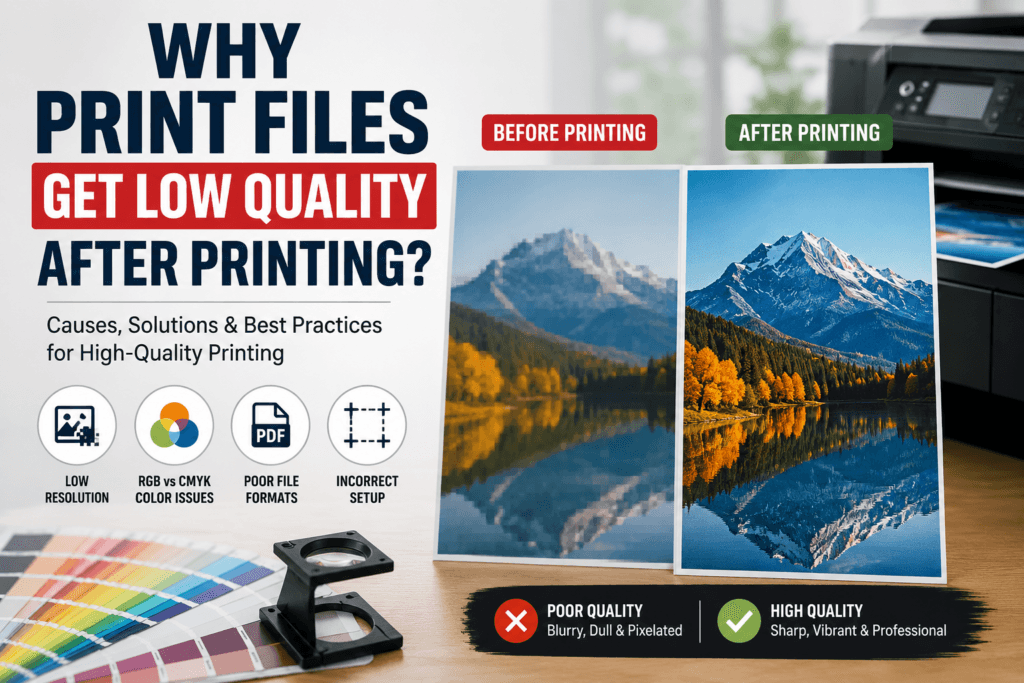
Printing issues can ruin the final appearance of brochures, business cards, flyers, packaging, posters, and other marketing materials. Many businesses create attractive designs on screen, but the printed version often appears blurry, faded, pixelated, or unprofessional. This usually happens because print files are not prepared correctly before production.
Understanding why print files get low quality after printing is important for designers, businesses, and anyone working with commercial printing. Factors such as image resolution, color mode, file format, bleed settings, compression, and printer calibration all affect the final output. Even a small technical mistake can reduce print quality significantly.
This guide explains the main causes of poor print quality and how to create professional print-ready files that produce sharp and vibrant results.
Understanding Print Quality
Print quality refers to the sharpness, clarity, and accuracy of a printed design. A high-quality print displays crisp text, detailed images, smooth gradients, and accurate colors. Poor-quality printing often results in blurry visuals, dull colors, jagged edges, or faded details.
Most printing problems occur because files are designed for digital screens rather than physical printing. Screens display graphics differently from paper, which is why print files require specific technical settings.
Low Image Resolution Is the Main Cause
One of the biggest reasons print files lose quality after printing is low image resolution. Images taken from websites or social media are usually optimized for screens and not for commercial printing.
Digital screens only need low-resolution images to appear clear. Printing requires much higher resolution because the printer must reproduce fine details on paper. If a small image is enlarged for a poster, brochure, or packaging design, the image becomes pixelated because there is not enough image data available.
Professional printing generally requires 300 DPI for sharp results. Large-format prints like banners may use lower DPI because they are viewed from a greater distance.
What Is DPI in Printing?
DPI stands for dots per inch and measures how many ink dots are printed within one inch of paper. Higher DPI creates sharper images and smoother details, while lower DPI reduces clarity.
DPI = \frac{\text{Total Dots}}{\text{Inches}}
Many beginners use screenshots or web images in print designs without checking resolution. These files may look acceptable on a phone or laptop but appear blurry when printed.
RGB vs CMYK Color Problems
Another common reason for poor print quality is using RGB color mode instead of CMYK.
RGB is designed for digital displays like mobile phones and computer monitors. CMYK is the color system used in commercial printing. Since screens emit light and printed paper reflects light, colors naturally appear different.
When RGB files are converted automatically during printing, colors may become darker, duller, or less vibrant than expected. Professional designers usually create print projects directly in CMYK mode to maintain accurate color reproduction.
Incorrect File Formats Reduce Quality
File format selection also affects print clarity. Some formats compress images heavily, reducing overall quality.
JPEG files are commonly used online because they reduce file size, but repeated editing and saving can damage image quality. PNG files work well for web graphics but are not always ideal for large commercial printing projects.
Professional printers usually prefer PDF, AI, EPS, or TIFF files because these formats preserve layout, typography, and image quality more effectively.
Poor Bleed and Trim Setup
Another reason print designs look unprofessional is the absence of proper bleed settings. Bleed is the extra design area extending beyond the final trim line. It prevents unwanted white edges after cutting.
Without bleed, slight movement during trimming can expose blank paper edges around the design. Professional print files normally include bleed, crop marks, and safe margins to ensure accurate finishing.
Enlarging Small Images Causes Pixelation
Many people stretch small images to fit larger layouts. This is a major cause of blurry printing.
For example, a small web image may look acceptable on screen, but enlarging it for an A4 flyer forces the printer to stretch each pixel. The final result loses detail and sharpness.
Professional designers avoid this issue by using high-resolution images or vector graphics that can scale without losing quality.
Why Vector Graphics Are Better for Printing
Vector graphics use mathematical paths instead of pixels, allowing them to remain perfectly sharp at any size. Logos, icons, and illustrations are often created as vector files because they maintain quality even when enlarged.
Raster images like JPEG and PNG depend on resolution, so enlarging them reduces clarity. This is why professional print companies prefer vector artwork for branding materials and packaging.
Font and Typography Issues
Typography problems can also reduce print quality. If fonts are not embedded correctly, the printer may replace them automatically, causing layout issues or broken text formatting.
Professional print-ready files usually include embedded fonts or outlined text to ensure typography appears exactly as designed.
Printer Calibration and Equipment Problems
Sometimes the file itself is correct, but the printing equipment is not calibrated properly. Printer calibration affects color accuracy, sharpness, and ink distribution.
Poorly maintained printers can produce faded colors, uneven ink coverage, blurry text, or banding lines. Professional printing companies regularly calibrate their machines to maintain consistent quality across all print jobs.
Paper Type Also Affects Quality
Paper selection plays an important role in final print appearance. Glossy paper generally produces sharper and more vibrant colors because it reflects more light. Matte paper offers a softer and more premium look but may slightly reduce color intensity.
Low-quality or very thin paper can absorb ink unevenly, causing dull colors and reduced sharpness.
Compression During File Sharing
Many people unknowingly reduce print quality while transferring files. Messaging apps such as WhatsApp or Messenger automatically compress images and PDFs to reduce file size.
Compressed files lose detail and resolution, which affects printing quality. Professional print files should be shared through email attachments, cloud storage, or file transfer services that preserve original quality.
Export Settings Matter
Even a well-designed file can lose quality during export if incorrect settings are used. Low-quality PDF presets, image downsampling, or excessive compression can damage print clarity.
Professional print exports usually include high-resolution settings, CMYK color profiles, embedded fonts, and proper bleed configuration.
How Professional Printers Maintain High Quality
Professional printing companies follow a prepress process before production begins. This process includes checking resolution, verifying bleed settings, correcting colors, embedding fonts, and testing layouts.
These steps help identify potential issues before mass printing starts, reducing errors and ensuring professional results.
Best Practices for High-Quality Printing
To achieve professional printing results, designers should always use high-resolution images, prepare files in CMYK mode, and export designs using print-quality settings. Logos should remain in vector format whenever possible, and bleed settings must be added correctly before production.
It is also important to review print proofs before final printing. A proof allows businesses to identify color, alignment, or resolution issues before large quantities are produced.
Final Thoughts
Understanding why print files get low quality after printing can help businesses avoid expensive mistakes and maintain a professional brand image.
Most quality problems happen before the printing process starts. Low-resolution images, incorrect color modes, compressed files, and poor export settings are some of the most common causes of blurry or faded prints.
By using proper print-ready settings, high-quality source files, and professional printing practices, businesses can produce sharp, vibrant, and visually impressive printed materials every time.
FAQ
Why do images become blurry after printing?
Images usually become blurry because they are low resolution or enlarged beyond their original size.
What is the best DPI for printing?
300 DPI is considered the industry standard for high-quality commercial printing.
Why do printed colors look different from screen colors?
Screens use RGB colors while printers use CMYK inks, which creates color differences.
Which file format is best for commercial printing?
PDF is one of the best formats because it preserves layout, fonts, and image quality.
Can WhatsApp reduce print file quality?
Yes. Messaging apps often compress files automatically, reducing their quality for printing.